Upgrading an old computer doesn’t require a large budget or advanced technical skills. Replacing key components like RAM and storage can significantly boost performance without overspending. These changes often extend the device’s useful life and improve speed for everyday tasks.
Many people overlook simple upgrades that deliver noticeable results. They can target affordable parts that fit their system, such as solid-state drives (SSDs) or additional memory, which offer the best cost-to-performance ratio.
Understanding which components matter most and how to install them safely is essential. This guide breaks down practical steps to help anyone upgrade their old computer efficiently and economically.
Assessing the Upgrade Potential of Your Old Computer
Understanding the current state of the computer and the limitations in its hardware helps set realistic expectations for upgrades. A precise evaluation of the system’s components, performance challenges, and compatibility ensures the most effective use of budget and resources.
Evaluating Current Hardware and Performance
The first step is to list all installed components, including CPU model, RAM size, storage type, and GPU if present. Tools like CPU-Z or Speccy provide detailed specs quickly.
Next, benchmark the system’s performance with software such as UserBenchMark or PassMark. This identifies weak areas and confirms if the computer is bottlenecked by outdated hardware.
Common signs of sluggishness include slow boot times, frequent freezes, or the inability to run recent software smoothly. These symptoms hint at which component needs an immediate upgrade.
Identifying Key Bottlenecks
Focus on components most likely to restrict system speed: CPU, RAM, and storage drive. If usage spikes at 100% on these parts while using the computer, they are primary candidates for upgrade.
RAM under 8GB often limits multitasking. A slow mechanical hard drive considerably delays loading times compared to SSDs.
Identifying bottlenecks requires monitoring tools like Task Manager. For instance, high disk activity during idle suggests the storage device contributes to poor performance.
Checking Compatibility for New Components
Upgrading requires confirming the motherboard supports the intended new hardware. Check the socket type for CPUs and the maximum RAM capacity.
BIOS updates might be necessary to enable compatibility with newer components. Power supply wattage is another consideration; it must support added or more powerful parts.
Physical space inside the case also affects GPU or cooling options. Refer to the motherboard manual for exact specifications on RAM speed, capacity, and CPU models supported.
Essential Budget-Friendly Hardware Upgrades
Improving performance often starts with targeted upgrades that deliver the most noticeable benefits. Focusing on storage speed, memory capacity, and graphical power can extend a computer’s usability without a large investment.
Upgrading to a Solid-State Drive
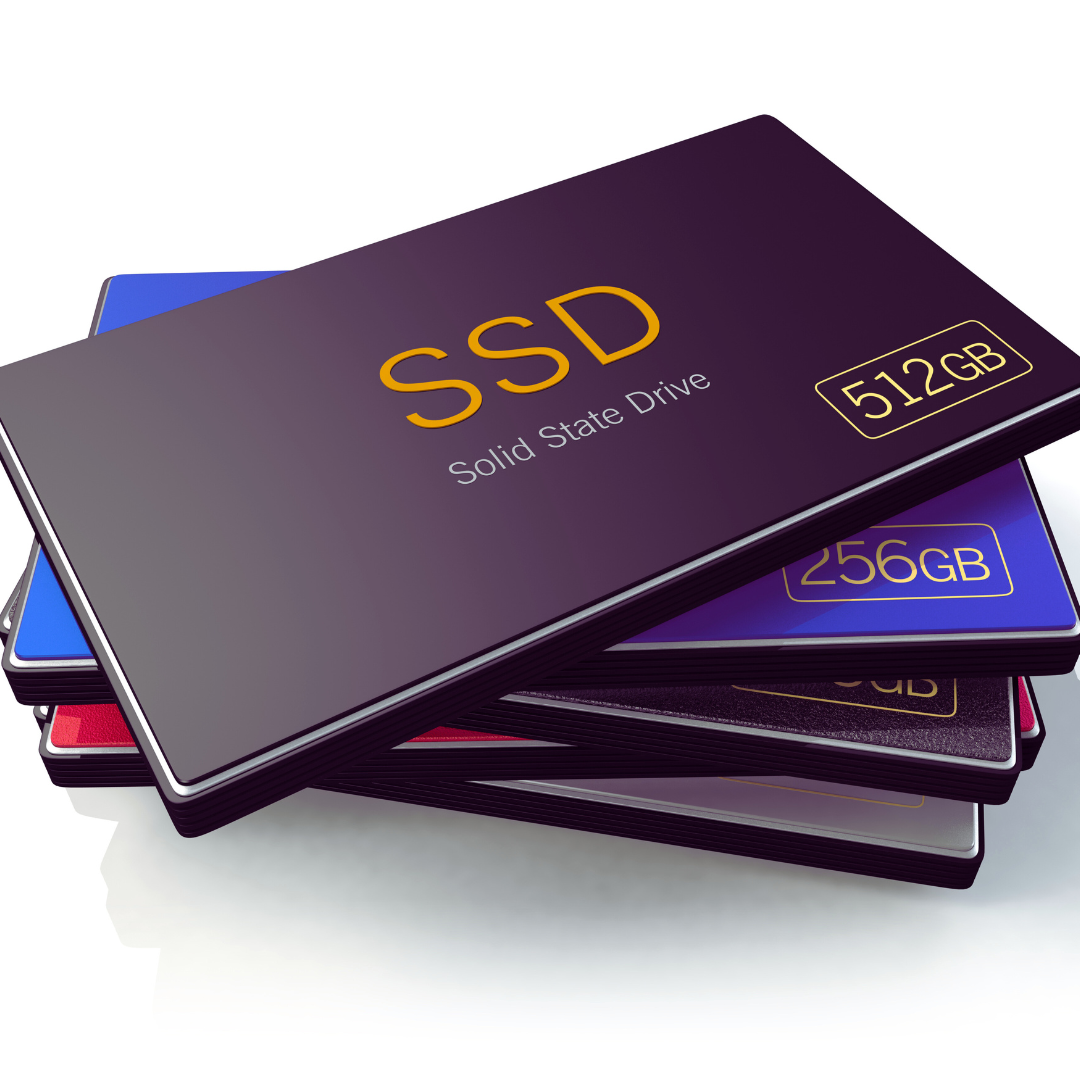
Replacing a traditional hard disk drive (HDD) with a solid-state drive (SSD) significantly enhances system responsiveness. SSDs have no moving parts, which reduces load times for the operating system and applications. They typically offer faster boot times, quicker file transfers, and better overall performance.
Price-wise, SATA SSDs are the most affordable option, with capacities between 240GB and 500GB suitable for most users on a budget. NVMe drives deliver faster speeds but may not be compatible with all older motherboards. Installation involves cloning the existing data or performing a fresh OS install.
An SSD upgrade often provides the biggest noticeable speed improvement for an older machine.
Adding or Replacing RAM
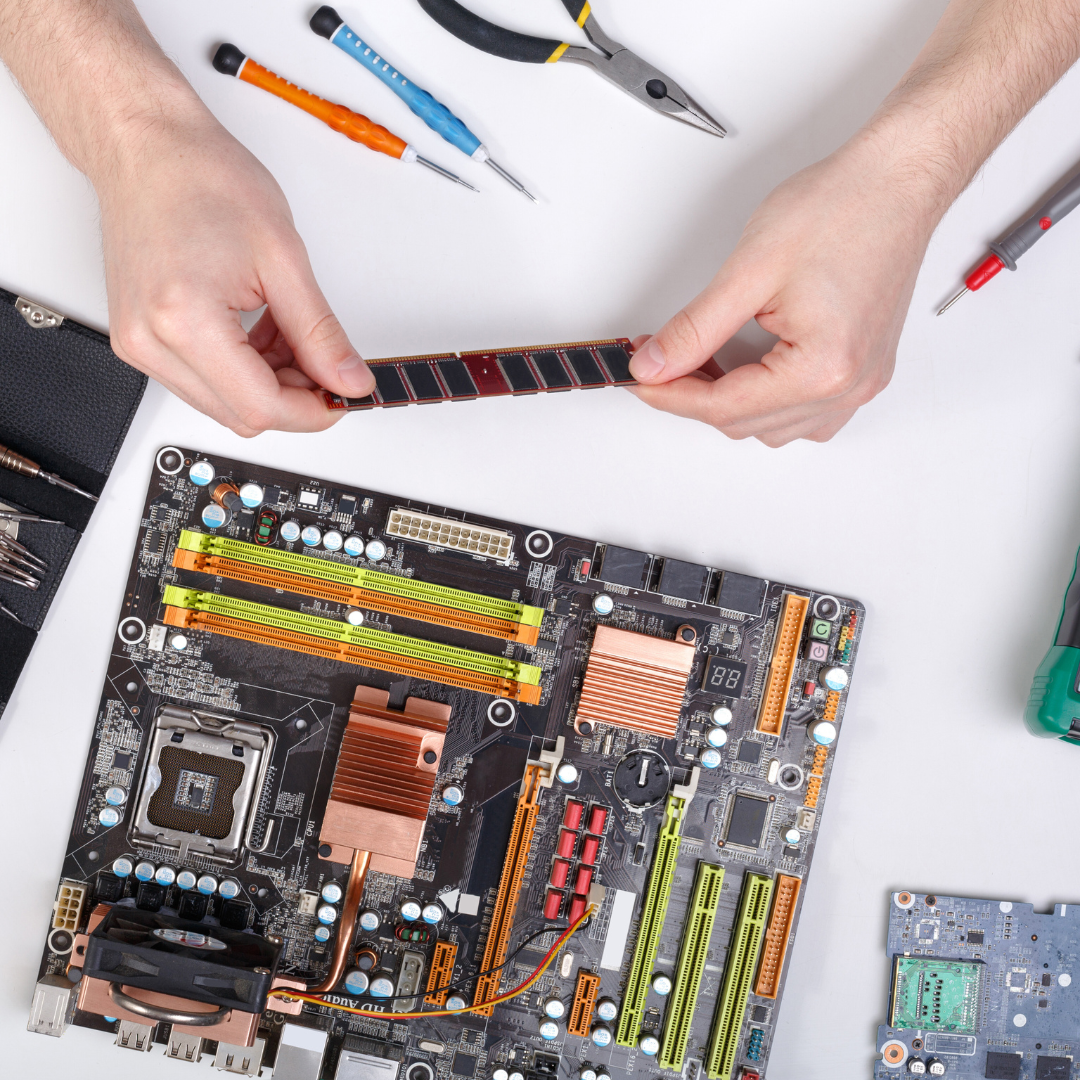
Increasing RAM helps improve multitasking and allows modern software to run more smoothly. Many older computers ship with 4GB or less, which today limits performance. Upgrading to 8GB or 16GB can reduce slowdowns caused by memory swapping.
Before purchasing, users should check the motherboard’s maximum RAM capacity and supported speeds. Upgrading to faster RAM modules may offer additional benefits, but compatibility is crucial. It’s typically recommended to install matched pairs of RAM sticks for dual-channel operation.
Adding or replacing RAM is a straightforward upgrade with clear gains in system responsiveness.
Choosing an Affordable Graphics Card
An entry-level or mid-range graphics card can enhance visual performance, especially for gaming or video editing tasks that integrated graphics struggle with. Budget cards from previous generations can often be found at lower prices and still offer improved frame rates and better driver support compared to built-in GPUs.
It’s important to consider power supply capacity and case size when selecting a card. Look for models with low power requirements and compact designs if the system has constraints. Brands like Nvidia’s GTX 16 series or AMD’s RX 500 series can be cost-effective choices.
Investing in a budget graphics card can significantly extend an older computer’s lifespan for graphics-intensive applications.
Important Software Optimisations and Maintenance
Optimising software and conducting regular maintenance can significantly improve an old computer’s performance. Managing startup programmes, updating system drivers, and scheduling routine upkeep help maintain speed and stability without extra hardware costs.
Cleaning Up Operating System and Startup Programmes
Removing unnecessary files and disabling non-essential startup applications reduces boot time and frees system resources. Users should uninstall unused software and delete temporary files using built-in tools like Windows Disk Cleanup or third-party programmes such as CCleaner.
For startup management, the Task Manager or System Configuration utility (msconfig) can disable apps that slow boot processes. Fewer running background programmes means more available RAM and CPU for essential tasks, improving overall responsiveness.
Regularly checking for malware with reliable antivirus software also prevents performance degradation caused by unwanted software. Combining these steps keeps the operating system lean and responsive without hardware changes.
Updating Drivers and Firmware
Keeping drivers and firmware up to date ensures hardware components communicate efficiently with the operating system. Outdated drivers can cause system instability, slowdowns, or hardware compatibility issues, especially with graphics cards, network adapters, and storage devices.
Users should regularly visit the hardware manufacturer’s website or use trusted update tools to download and install the latest driver versions. Firmware updates, particularly for the motherboard BIOS, can enhance stability, fix bugs, and sometimes unlock improved performance options.
Incorrect or incomplete updates risk causing errors, so backups or system restore points are recommended before proceeding. Consistent updating maintains compatibility and avoids unnecessary bottlenecks from legacy software.
Performing Regular System Maintenance
Routine system maintenance tasks such as disk defragmentation (for HDDs), checking for system errors, and cleaning registry entries contribute to smoother operation. Tools like built-in Windows utilities or third-party software automate many of these processes.
Scheduling maintenance weekly or monthly helps keep the file system organised and resolves minor issues before they escalate. Checking storage space and freeing up disk capacity regularly also prevents slowdowns.
Monitoring system temperature and running occasional malware scans completes the maintenance routine. These steps ensure that the computer runs efficiently and reliably for longer periods.
Maximising the Value of Your Upgrades
Choosing the right components and setting clear expectations are key to stretching your upgrade budget effectively. Knowing which parts to prioritise and planning for future needs helps avoid unnecessary expenses.
Prioritising Upgrades Based on Usage
The first step is to identify the most limiting factor in the current system. For example, if the computer is slow to boot or load programs, upgrading to an SSD will deliver the most noticeable improvement. Adding more RAM benefits multitasking or using memory-heavy applications like browsers with many tabs open.
For gaming or graphic design, upgrading the graphics card provides better frame rates or rendering speed. Prioritise upgrades that address the bottleneck relevant to daily tasks rather than buying high-end parts unlikely to be fully utilised.
| Usage Scenario | Primary Upgrade | Secondary Upgrade |
| Office Work & Browsing | SSD | RAM |
| Gaming | Graphics Card | CPU |
| Multimedia Editing | RAM or Graphics Card | CPU |
Setting Realistic Performance Expectations
Upgrading an old computer on a budget will not match the performance of a brand-new high-end system. Users should expect improvements in responsiveness and speed, not dramatic leaps in processing power.
Older CPUs or motherboards might limit the potential gains from upgrades. Compatibility issues with newer components can also restrict performance. Setting achievable goals like quicker boot times or smoother multitasking avoids disappointment.
Future-Proofing Your Investment
Choosing upgrades that will remain compatible with future demands is important. For instance, opting for DDR4 RAM instead of older DDR3 ensures better longevity and upgrade paths. Similarly, selecting a motherboard with extra RAM slots or storage options adds flexibility.
Investing slightly more in reliable power supplies and cases improves system stability and opens room for future component upgrades. Avoid cheap parts that may fail quickly and lead to more frequent replacements or repairs.