
Keeping a computer running efficiently requires regular maintenance and smart usage habits. Regularly updating software, cleaning out unnecessary files, and managing startup programmes are key steps to maintaining performance.
Neglecting these tasks can lead to slowdowns, crashes, and reduced lifespan for both hardware and software. Knowing what to focus on will save time and improve the computer’s reliability over the long term.
Essential Computer Maintenance Practices
Regular upkeep ensures a computer runs smoothly and reduces delays caused by clutter or hardware issues. Key actions include managing files, optimising startup routines, maintaining storage, and keeping hardware clean to improve overall performance.
Free Up Disk Space and Remove Unnecessary Files
Removing unwanted files is critical for freeing up disk space and maintaining speed. Temporary files, download folders, and old documents tend to accumulate unnoticed. Users should regularly delete these files and empty the recycle bin to recover storage.
Utilising tools like built-in disk cleanup utilities or third-party software can automate this process. These tools identify and safely remove junk files without risking important data. Keeping at least 15-20% of disk space free helps the system operate efficiently and prevents slowdowns.
Manage Startup Programmes to Improve Boot Times
Many applications set themselves to launch automatically on startup, increasing boot times and consuming memory. Reviewing and disabling unnecessary startup programmes can expedite system startup and free up resources.
Users can access the task manager or system configuration tools to disable non-essential programmes. Prioritising only critical software at startup results in faster boot times and better performance immediately after logging in.
Optimise Storage and Run Regular Disk Cleanup
Optimising storage involves organising files and folders and running disk cleanup utilities regularly. Defragmenting traditional hard drives (HDDs) reorders data for quicker access, while solid-state drives (SSDs) benefit from firmware updates rather than defragmentation.
Disk cleanup tools safely remove temporary files, system caches, and residual update files, which accumulate over time. Scheduling these cleanups monthly helps maintain free storage, improves access speed, and reduces the chance of errors related to disk clutter.
Prevent Dust Build-Up and Maintain Clean Hardware
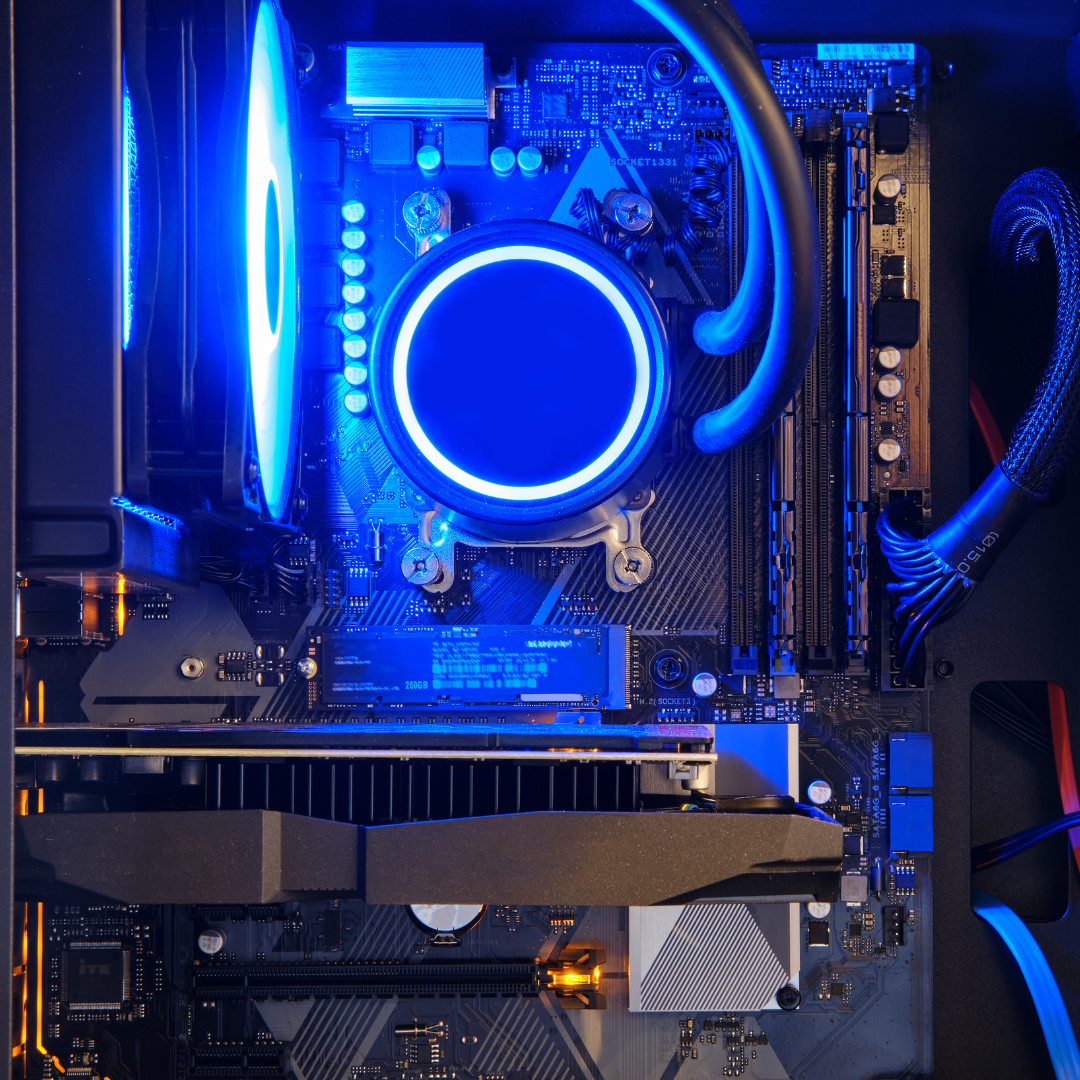
Dust inside a computer can block airflow and cause overheating, leading to hardware throttling or failures. Regular physical cleaning of vents, fans, and internal components prevents dust accumulation.
Using compressed air and anti-static brushes, users should clean hardware every few months. Proper ventilation during use also reduces dust build-up, which supports consistent cooling and extends the lifespan of the system.
Software and Security Upkeep
Maintaining software and security is essential to keep a computer running smoothly and reduce vulnerabilities. Regular updates, managing resource-heavy processes, and running security scans are key steps.
Keep Software Updated and Enable Automatic Updates
He should ensure all software, including operating systems like Windows, has the latest updates installed. These updates often include security patches and performance improvements. Enabling automatic updates helps avoid missing critical fixes.
Automatic updates save time and reduce the risk of running outdated software. Most modern systems allow users to schedule updates outside working hours to minimise disruption. Regularly checking that updates complete successfully avoids security gaps.
For third-party software, he should use built-in update tools or trusted update managers. This practice supports overall system stability and protection from emerging threats.
Monitor Background Processes and Utilise Task Manager
He can identify applications consuming excessive resources by using Windows Task Manager or macOS Activity Monitor. These tools provide real-time data on CPU, memory, and disk usage.
Regularly closing or disabling unnecessary background processes frees system resources, improving speed and responsiveness. Startup programmes should be reviewed and optimised to reduce boot time and ongoing load.
Task Manager also highlights suspicious processes that may indicate malware. It is important to investigate unfamiliar or resource-heavy tasks and take action accordingly to maintain software health.
Run System and Virus Scans Routinely
Running antivirus software regularly ensures malware is detected and removed promptly. He should schedule full system scans weekly and quick scans daily or after installing new software.
System scans find vulnerabilities and corrupted files that affect performance. He must keep the antivirus software updated to recognise the latest threats. In addition, Windows Security or similar tools should be used for integrated protection.
Combining scheduled virus scans with real-time protection helps maintain a secure and efficient computing environment. Immediate action following scan alerts reduces potential damage or slowdowns.
Optimising Hardware and System Performance
Efficient computer performance depends on keeping both software and hardware components fine-tuned. Updating essential system firmware and drivers, organising storage, upgrading key parts, and using specialised optimisation tools all contribute to smoother operation and reduced slowdowns.
Regularly Update Device Drivers and BIOS
Device drivers act as the communication bridge between hardware and the operating system. Outdated drivers often cause system errors, decreased speed, or hardware malfunctions. Regularly downloading and installing the latest driver updates ensures compatibility with new software and security patches.
BIOS updates should not be overlooked. Although less frequent, updating the BIOS can fix bugs and improve hardware stability. Before updating, backing up important data is critical to avoid any loss in case of failures. Manufacturers typically provide detailed instructions and tools for safe BIOS updates.
Perform Disk Defragmentation on Hard Drives
Traditional mechanical hard drives become fragmented over time, which significantly slows file access speeds. Disk defragmentation rearranges fragmented data, placing related file segments closer together to speed up read and write operations.
Windows includes a built-in defragmentation tool accessible via the system settings. For more in-depth cleaning beyond defragmentation, utilities like CCleaner help remove unnecessary files and optimise storage. Note that defragmentation is not necessary for SSDs and can reduce their lifespan if performed.
Upgrade Hardware Components for Enhanced Efficiency
Upgrading hardware yields tangible performance improvements, particularly for ageing systems. Increasing RAM supports smoother multitasking and faster application responsiveness. Replacing traditional hard drives with solid-state drives (SSDs) drastically reduces boot and load times.
A modern graphics card benefits users performing graphics-intensive tasks or gaming. For overall system responsiveness, upgrading the CPU can offer better multitasking and processing power. Before proceeding, evaluating compatibility and cost-effectiveness ensures worthwhile investments.
Utilise Advanced Tools for Deeper Optimisation
Advanced optimisation tools extend beyond basic maintenance. Software like CCleaner automates junk file removal, cache clearing, and registry cleaning to free up system resources. Built-in utilities such as Windows Performance Monitor provide insights into CPU, memory, and disk utilisation trends.
Third-party software can also manage startup programmes, reducing boot times by disabling unnecessary applications. Scheduling regular system scans and cleaning cycles helps maintain peak performance without manual intervention. Users should prioritise reputable tools to avoid unintended system issues.